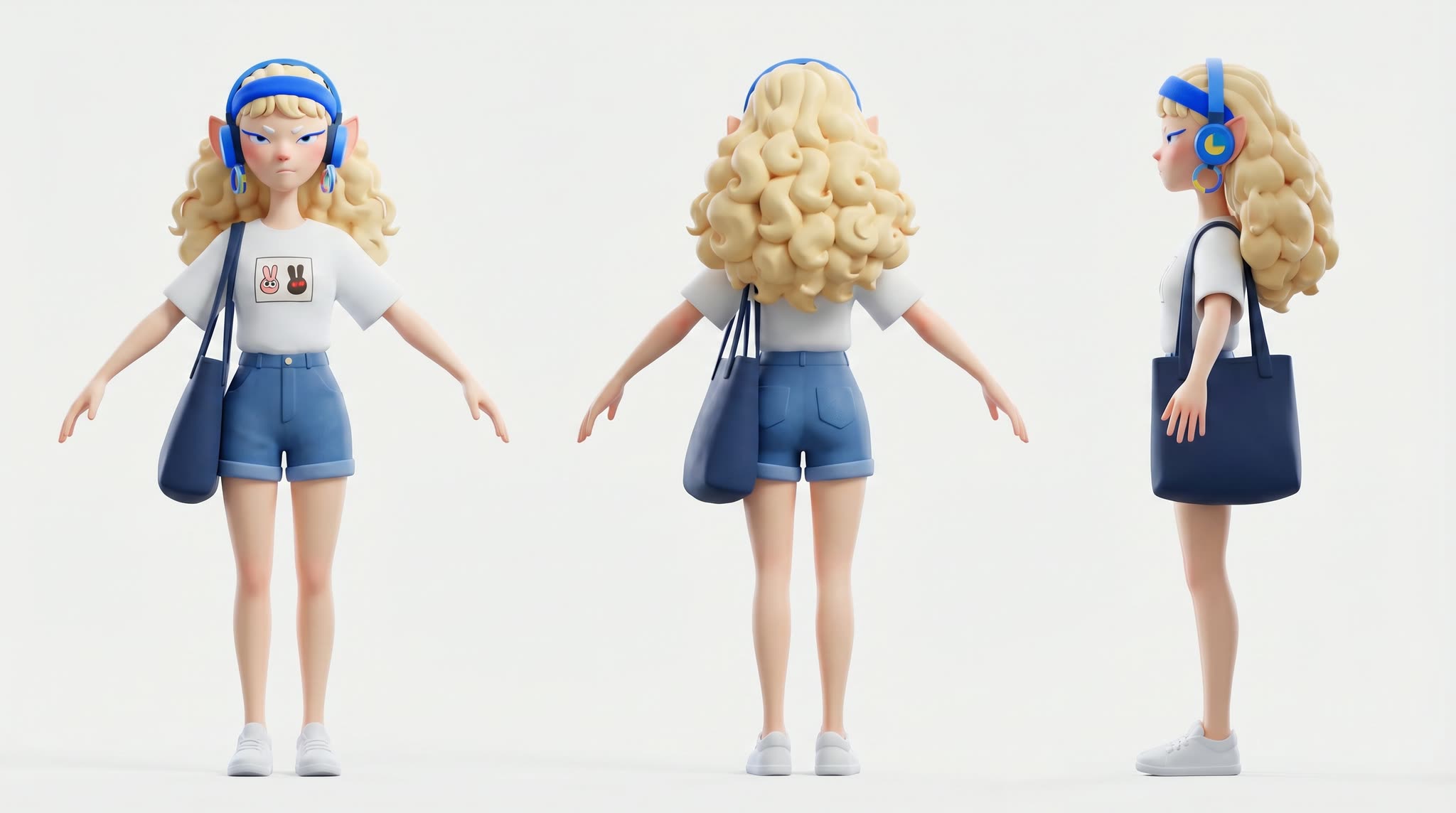
This workflow turns a single character reference plus a short scene description into a quick storyboard and an animated clip. It chains OpenAIGPTImage1 to generate storyboard stills from your prompt, then feeds your chosen keyframe and reference art into ByteDance2ReferenceNode (Seedance 2.0) to produce motion, finishing with SaveVideo to render a playable file. LoadImage brings your character reference into the graph, while SaveImage lets you export and review the storyboard frames before you animate.
Technically, the pipeline separates ideation from animation so you can iterate fast. OpenAIGPTImage1 handles image generation for visual beats (thumbnails or keyframes) based on your scene prompt. You then select a preferred frame and pair it with your uploaded character reference for consistent identity and styling inside ByteDance2ReferenceNode, which synthesizes a short image-to-video sequence. The final frames are assembled by SaveVideo. This modular approach makes it easy to refine prompts, swap keyframes, or adjust motion strength and duration without redoing earlier steps.
API
Use this workflow from code
Every Comfy workflow is a JSON graph. The payload below is this workflow, exactly as ComfyUI runs it — fetch it from the URL, keep it in version control, or load it in ComfyUI and run it node by node.
Run it from TypeScript or Python with the Comfy SDK. The same code targets Comfy Cloud or a ComfyUI you host yourself — only the base URL changes.
// Install (beta)
npm i @comfyorg/sdk

// Run this workflow (TypeScript)
import { Comfy } from "@comfyorg/sdk";

const client = new Comfy({ apiKey: "comfyui-..." });
const wf = await client.workflows.fromFile("workflow_api.json");
const job = await client.run(wf);
await job.getOutputs("<output-node-id>")[0].toFile("output.png");
The SDK takes a workflow in API format: open this workflow in ComfyUI and use File → Export Workflow (API).
Comfy Cloud API access requires a plan with an API key.
FAQ